

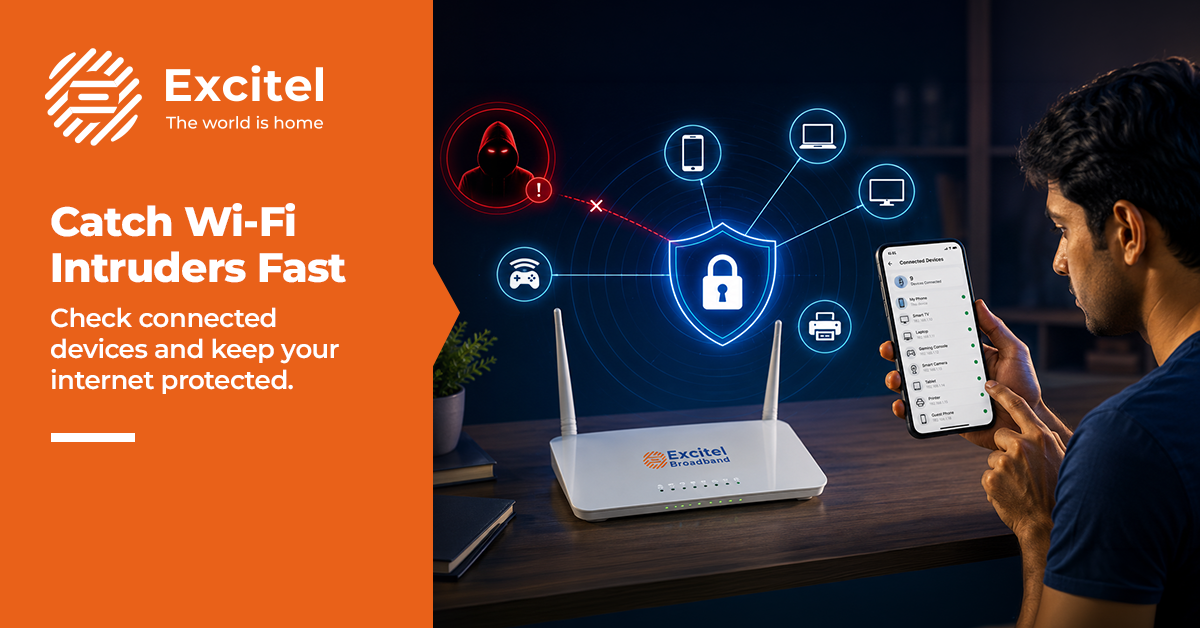


You’re watching something online, and the video keeps buffering. You restart the router. Still slow. Sound familiar? The problem might not be your connection it could be someone else using it without your permission. Wi-Fi hacking and unauthorised access are more common than people realise. Unknown Wi-Fi users quietly consume your bandwidth, slow down your speeds, and can even put your personal data at risk. This guide will help you figure out exactly who is on your home Wi-Fi network, how to kick them off, and how to secure your Wi-Fi so it doesn’t happen again. Let’s get into it.
Signs Someone Is Using Your Wi-Fi
Not sure if someone has sneaked onto your Wi-Fi network? Watch out for these warning signs:
- Slow internet speed: Your internet suddenly feels sluggish even though you’re not doing anything heavy. If multiple devices are secretly connected, they eat into your bandwidth.
- Unknown connected devices: You spot device names in your router dashboard that you don’t recognise. That’s a red flag.
- Frequent disconnections: Your connection keeps dropping. Too many Wi-Fi devices on the same network can overload it.
- Unusual data usage: Your monthly data runs out faster than it should. Someone else could be streaming, downloading, or browsing on your plan.
- Router activity lights: Your router’s lights blink even when all your devices are switched off. That’s often a sign of unauthorised activity on your Wi-Fi network.
How to Check Connected Devices
Open your browser and type 192.168.1.1 or 192.168.0.1. Log in with your admin credentials, usually printed on the back of your router. Head to ‘Connected Devices’ or ‘DHCP Clients’ and you’ll see every device currently on your Wi-Fi.
Each device shows an IP address and a MAC address. Go through the list and cross-check against your own devices. Anything unfamiliar is worth acting on. If the dashboard feels confusing, the Fing app (free on iOS and Android) does the same thing in a much cleaner format.
Common Ways Wi-Fi Gets Accessed Without Permission
Understanding how Wi-Fi hacking happens helps you plug the gaps. These are the most common ways people get in:
- Weak passwords: Simple passwords like ‘123456’ or ‘password’ are the first thing anyone tries. They take seconds to crack.
- Default router settings: Many people never change the factory-set admin username and password. These are publicly known and easy to exploit.
- WPS enabled: WPS (Wi-Fi Protected Setup) was meant to make connecting devices easier. Unfortunately, it also makes your Wi-Fi easier to break into.
- Password sharing: You gave the Wi-Fi password to a neighbour or a friend once. They still use it or share it further.
- Open networks: If your Wi-Fi has no password, anyone nearby can hop on without any effort.
5 Steps to Secure Your Wi-Fi Right Now
Securing your home Wi-Fi doesn’t require technical expertise. Follow these five steps and you’ll be covered:
Step 1: Change Your Wi-Fi Password
Log in to your router dashboard and change the Wi-Fi password immediately. Choose something at least 12 characters long, a mix of letters, numbers, and symbols. Avoid birthdays, names, or anything obvious. Once you change it, all currently connected devices (including uninvited ones) will be disconnected. Only reconnect your own devices.
Step 2: Enable WPA2 or WPA3 Encryption
Wi-Fi protection depends on the encryption standard you use. WPA2 is the minimum you should have. If your router supports WPA3, switch to it; it’s newer, stronger, and far harder to crack. You’ll find this setting under ‘Wireless Security’ in your router dashboard.
Step 3: Disable WPS
WPS might seem convenient, but it’s a known security loophole. Turn it off from the router settings. You don’t need it entering the Wi-Fi password manually is more than enough and significantly more secure.
Step 4: Update Your Router Firmware
Router manufacturers regularly release firmware updates to fix security vulnerabilities. Log in to your router and check for updates under the ‘Administration’ or ‘Advanced’ section. Keeping firmware up to date is one of the simplest things you can do for internet security.
Step 5: Set Strong Admin Credentials
Your router’s admin panel needs its own strong username and password separate from your Wi-Fi password. Never leave it as ‘admin/admin’ or whatever the factory default is. If someone gets into your admin panel, they control your entire network.
Ways to Maintain Fast and Secure Wi-Fi Long-Term
Good Wi-Fi security is less about one big fix and more about consistent habits. Set up a guest network for visitors so they never touch your main network. Use MAC address filtering to whitelist only your approved devices. Enable bandwidth controls if your router supports it. This stops any single device from consuming your entire connection.
Do a quick monthly check of your connected devices list. It takes two minutes and can catch problems before they escalate. And keep your router positioned centrally, away from windows. This reduces signal spillage outside your home and limits the chances of nearby strangers accessing your Wi-Fi.
Conclusion
Slow speeds, unknown devices, and unexpected data usage are all signs that your Wi-Fi may be compromised. The good news is that checking and securing it takes less than 30 minutes. Change your Wi-Fi password, enable the right encryption, disable WPS, update your firmware, and monitor your network regularly. These steps will keep your home Wi-Fi fast, private, and protected.
Of course, Wi-Fi security works best when a reliable connection backs it. Excitel offers some of the best Wi-Fi plans in India with fast Wi-Fi, unlimited internet, and consistent speeds that don’t slow down even under load. If you’re tired of unreliable connections, explore Excitel Wi-Fi plans and get the secure, fast internet your home deserves.
FAQs
- How to check who is using my Wi-Fi?
Log in to your router dashboard (192.168.1.1) and open the connected devices list. Alternatively, use the Fing app to scan your Wi-Fi network and see all connected devices. - How to block unknown devices from Wi-Fi?
Change your Wi-Fi password immediately; this disconnects all devices. Then enable MAC address filtering in your router settings so only approved Wi-Fi devices can reconnect. - Why is my Wi-Fi suddenly slow?
It could be too many devices connected, an unauthorised user consuming bandwidth, or a weak router signal. Check your connected device list first and restart your router to resolve the issue. - How to secure a home Wi-Fi network?
Use a strong Wi-Fi password, enable WPA2 or WPA3 encryption, disable WPS, update your router firmware, and set a strong admin login. These five steps secure Wi-Fi for any home network.